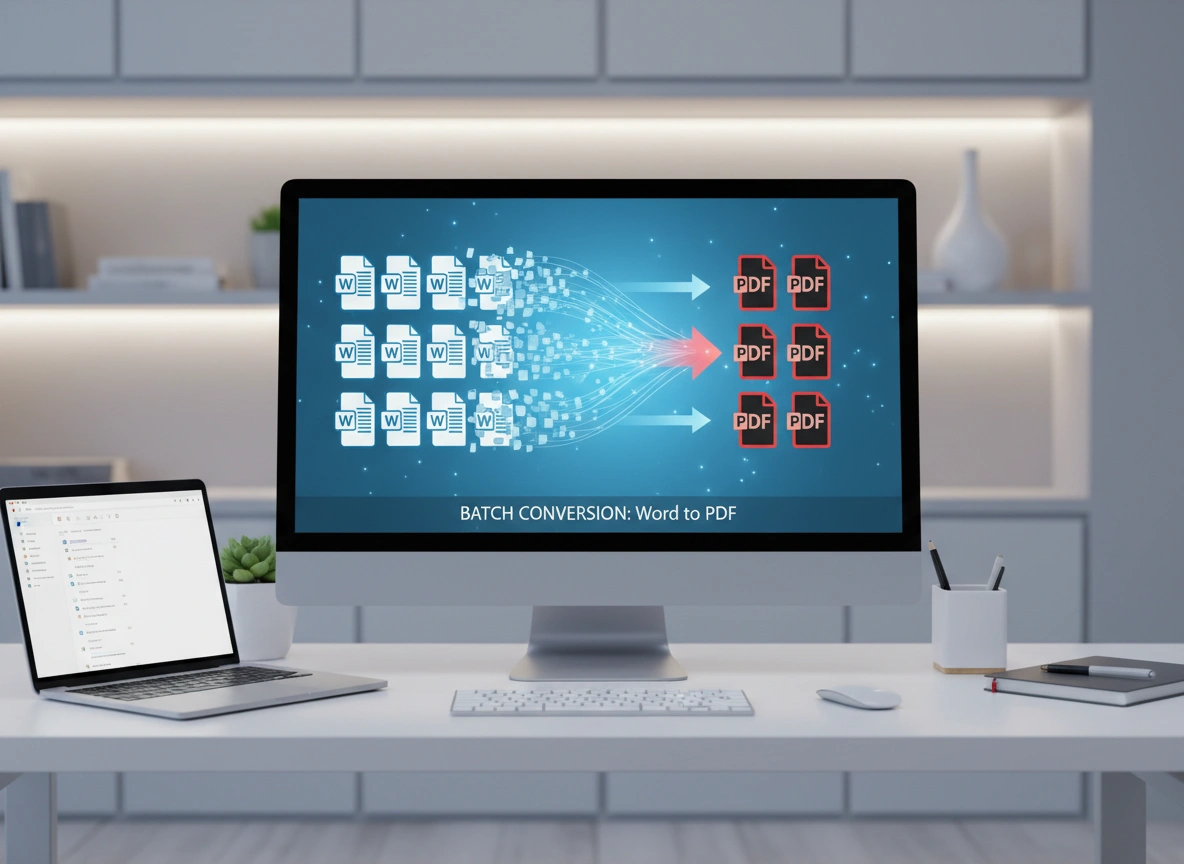
Managing documentation for large projects can be a monumental task. When you’re dealing with hundreds or even thousands of Microsoft Word files—from reports and proposals to manuals and contracts—ensuring consistency and accessibility is crucial. This is where the need to batch convert Word to PDF becomes a critical workflow component. Converting files one by one is not just tedious; it’s a significant drain on time and resources that could be better spent elsewhere.
This article provides a comprehensive guide to mastering the batch conversion process. We will explore the significant advantages of using PDF for large-scale projects and offer step-by-step instructions for various conversion methods. You will learn tips for maintaining quality, overcoming common challenges, and ultimately streamlining your document management workflow for maximum efficiency.
Why PDF is the Gold Standard for Large Projects
Before diving into the “how,” it’s important to understand the “why.” The PDF (Portable Document Format) offers several distinct advantages over Word’s native DOCX format, especially in the context of large, collaborative, or long-term projects.
Universal Compatibility and Accessibility
PDFs are designed to be device-independent. A PDF file will look the same whether it’s opened on a Windows PC, a Mac, a tablet, or a smartphone. This universal rendering eliminates the formatting issues that often plague Word documents, such as font substitutions, shifting layouts, and broken images when opened on different systems. For large projects with diverse teams and stakeholders, this consistency is non-negotiable.
Enhanced Security
Project documents often contain sensitive or proprietary information. PDFs provide robust security features that are not as easily implemented in Word files. You can encrypt documents, require passwords to open or edit them, and restrict actions like printing, copying, or modifying content. This control is essential for protecting intellectual property and maintaining compliance with data privacy regulations.
Smaller File Sizes
While not always the case, PDFs are often more compact than their Word counterparts, especially for documents rich in images and complex formatting. Advanced compression algorithms can significantly reduce file size without a noticeable loss in quality. For projects involving thousands of documents, this translates into reduced storage costs and faster file transfers, which is particularly beneficial for cloud-based collaboration.
Archival and Compliance
PDF has become the de facto standard for long-term document archiving. The PDF/A (Archival) format is an ISO-standardized version of PDF specifically designed for the digital preservation of electronic documents. It ensures that files will remain viewable and accessible for years to come, which is a requirement for many legal, governmental, and corporate sectors.
Methods for Batch Converting Word to PDF
There are several tools and techniques available for converting multiple Word documents to PDF simultaneously. The best method for you will depend on your budget, technical resources, and the specific needs of your project.
Method 1: Using Microsoft Word’s Built-in Features
Microsoft Word itself offers a way to automate tasks through macros, which can be used for batch conversion. This method is free but requires some initial setup and familiarity with VBA (Visual Basic for Applications).
Step-by-Step Guide:
- Prepare Your Files: Place all the Word documents you want to convert into a single folder.
- Open the VBA Editor: Open a new or existing Word document. Press
Alt + F11to open the VBA Editor. - Insert a New Module: In the VBA Editor, go to
Insert > Module. - Paste the Code: Copy and paste the following VBA code into the module window:
Sub BatchConvertToPDF() Dim doc As Document Dim strFolderPath As String Dim strFileName As String ' Ask user to select the folder containing Word documents With Application.FileDialog(msoFileDialogFolderPicker) .Title = "Select the folder containing your Word documents" If .Show = -1 Then strFolderPath = .SelectedItems(1) & "\" Else Exit Sub ' User cancelled End If End With ' Get the first .doc or .docx file in the folder strFileName = Dir(strFolderPath & "*.do*", vbNormal) ' Loop through all Word files in the folder While strFileName <> "" Set doc = Documents.Open(FileName:=strFolderPath & strFileName, ReadOnly:=True) ' Save as PDF in the same folder with the same name doc.ExportAsFixedFormat OutputFileName:=strFolderPath & Left(strFileName, InStrRev(strFileName, ".") - 1) & ".pdf", _ ExportFormat:=wdExportFormatPDF ' Close the document without saving changes doc.Close SaveChanges:=wdDoNotSaveChanges ' Get the next Word file strFileName = Dir Wend MsgBox "Batch conversion complete!", vbInformation End Sub - Run the Macro: Close the VBA Editor. Press
Alt + F8to open the Macros dialog box, selectBatchConvertToPDF, and clickRun. You will be prompted to select the folder containing your Word files. The macro will then convert each one to a PDF in the same location.
Method 2: Using Adobe Acrobat Pro
For those who regularly work with PDFs, Adobe Acrobat Pro is the industry-standard tool. It offers a powerful and user-friendly batch conversion feature.
Step-by-Step Guide:
- Open Acrobat Pro: Launch the Adobe Acrobat Pro application.
- Access the Create PDF Tool: Go to
Tools > Create PDF. - Select Multiple Files: Choose the
Multiple Filesoption. Then, clickCreate Multiple PDF Files. - Add Files or Folders: In the dialog box, click
Add Files...orAdd Folder...to select the Word documents you wish to convert. You can add files from various locations. - Configure Output Options: Click the
Output Optionsbutton. Here you can specify the target folder for the saved PDFs, define a file naming convention, and adjust conversion settings. - Start the Conversion: Once you have added all your files and configured the settings, click
OKto begin the batch conversion process. Acrobat will process the files and save the PDFs in your designated folder.
Method 3: Using Online Converters
Numerous websites offer free online batch conversion services. These are convenient for quick, one-off tasks but may have limitations on file size, the number of files you can process at once, and potential privacy concerns.
Step-by-Step Guide:
- Choose a Reputable Converter: Select a well-known online tool (e.g., Smallpdf, iLovePDF, Soda PDF).
- Upload Your Documents: Most sites have a drag-and-drop interface or an “Upload Files” button. Select all the Word documents you want to convert.
- Start the Conversion: The website will typically process the files automatically.
- Download the PDFs: Once finished, you will be provided with a link to download the converted PDFs, often bundled into a single ZIP file.
Caution: Be mindful of security when using online converters. Avoid uploading documents containing sensitive or confidential information.
Method 4: Specialized Batch Conversion Software
For heavy-duty, enterprise-level needs, dedicated batch processing software offers the most robust features, speed, and control. These tools are built specifically for high-volume conversions and often include advanced features like command-line operation for integration into automated workflows.
Examples of such software include products that can be configured to “watch” a folder and automatically convert any new Word document that appears in it. These solutions are ideal for continuous document generation processes.
Tips for Quality and Consistency
Converting files in bulk is only effective if the output is reliable. Here are some tips to ensure high-quality results:
- Standardize Templates: Before conversion, ensure your Word documents use a standardized template with consistent styles, fonts, and headers/footers. This minimizes formatting errors.
- Embed Fonts: To guarantee your text appears correctly on any device, configure your conversion settings to embed fonts within the PDF. In Word, this can be found under
File > Options > Save > Preserve fidelity when sharing this document. - Optimize Images: Compress images within your Word documents before conversion to keep PDF file sizes manageable. However, be careful not to over-compress and lose necessary detail.
- Check Hyperlinks and Bookmarks: After conversion, spot-check a few PDFs to ensure that internal and external hyperlinks, as well as bookmarks (from Word’s navigation pane), have been preserved correctly.
- Run a Test Batch: Before converting thousands of files, run a small test batch with a representative sample of your documents to identify any potential issues with your chosen method.
Overcoming Common Challenges
Even with the best tools, you may encounter issues. Here’s how to troubleshoot them:
- Formatting Discrepancies: If layouts are breaking, double-check the original Word documents for hidden formatting or complex tables that don’t translate well. Simplifying the layout or saving the Word file as “Strict Open XML Document” before conversion can help.
- Slow Conversion Speeds: Batch conversion can be resource-intensive. Close other applications to free up system memory and CPU power. For very large projects, consider running the process overnight.
- File Corruption: If a converted PDF is corrupt, the original Word file may have been the problem. Try opening and re-saving the problematic Word document before attempting to convert it again.
Conclusion: Adopt Efficient Conversion Workflows
In project management, efficiency is paramount. Manually converting documents is an outdated practice that introduces risk and wastes valuable time. By embracing batch conversion methods—whether through Word’s built-in macros, professional software like Adobe Acrobat, or specialized tools—you can streamline your workflow, enhance security, and ensure document consistency across your entire project.
Start by evaluating your project’s scale and requirements. Choose the method that best fits your needs and budget, and run a test batch to perfect your process. Adopting an efficient batch conversion strategy is a simple yet powerful step toward more effective and professional document management.
Please visit website for more info.
